A downloaded .zip, .rar, or .7z file gets extracted once, the extracted folder gets used, and the original archive stays behind — not because anyone needs it, but because deleting it never felt urgent enough to actually do. Multiply that by every software installer, every downloaded project, every archived photo set over a few years, and it adds up to real, unnoticed disk space.
The specific pattern to look for
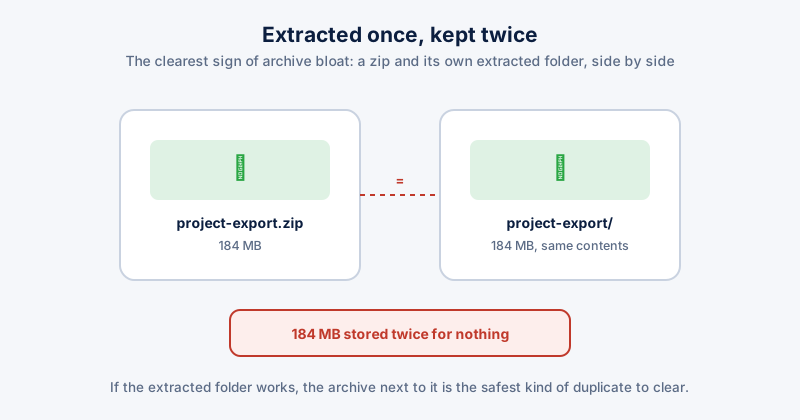
The clearest sign of archive bloat isn't just an old .zip file sitting in Downloads — it's an old .zip file sitting right next to a folder with the same name, which almost always means it was extracted once and then both copies were kept. That's the same content stored twice, and it's the safest kind of duplicate to clear: unlike a photo or a document, there is no meaningful "original vs. edited version" risk with an archive that's already been extracted.
- Sort your Downloads folder by file type or extension, and look for .zip/.rar/.7z files
- For each one, check whether a folder with a matching or similar name already exists alongside it
- If the extracted folder works and you've already used what's in it, the archive itself is safe to delete — you're not losing the content, only the redundant compressed copy
- For archives with no matching extracted folder, check the modification date — one you haven't opened in a year or more is a reasonable candidate to at least move off your main drive
Where this tends to hide
- Downloads — the single biggest source, since it's where every browser saves archives by default and almost nobody manually organizes it
- Old project folders — a codebase or design project archived "just in case" before a rewrite, then never revisited
- Photo and video backups — phone backup tools sometimes save an archived export alongside the already-imported originals
- Software installers — some older installers ship as a self-extracting archive that leaves both the archive and its extracted setup files behind after installation finishes
Before deleting an old archive you don't remember the contents of, it's worth a quick peek inside (most archive tools let you browse without fully extracting) rather than assuming from the filename alone — occasionally a genuinely important backup ends up mixed in with the disposable ones.
Why this is worth a separate pass from general disk cleanup
Standard disk cleanup tools target system-generated junk — temp files, caches, old Windows installs — because that's what's safe to remove automatically without asking. Archive bloat is technically "your" data, sitting in a personal folder, which is exactly why automatic cleanup tools leave it alone and it never gets cleared unless you go looking for it specifically.
ETA System Doctor's Archive Bloat Finder scans for exactly this pattern — old, unextracted or already-extracted .zip/.rar/.7z files, flagged specifically when a matching extracted folder sits right next to them — so you're shown the safest duplicates to clear first instead of guessing which archives in a crowded Downloads folder are still worth keeping.