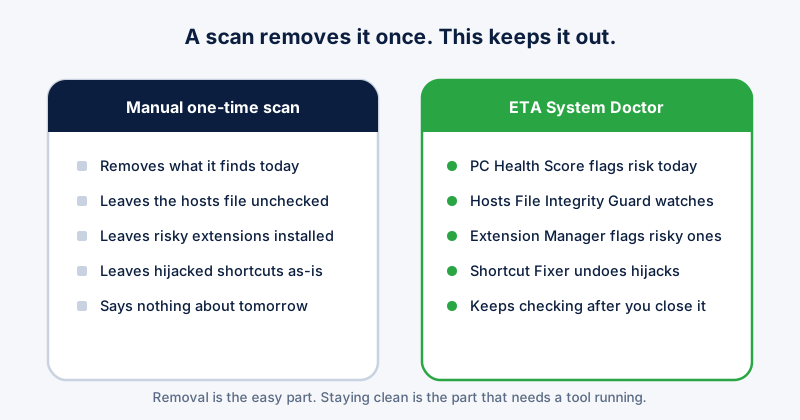
Knowing how to remove malware from a PC is only half the problem. The other half — the one most guides skip — is why the same machine gets reinfected two weeks later. A scan removes what it finds today; it says nothing about the hijacked shortcut, the risky extension, or the hosts file entry that let the infection in the first time, all of which are usually still sitting there afterwards.
Step 1: Run a full scan, not a quick one
Windows Security, then Virus & threat protection, then Scan options, then Full scan. A quick scan only checks common hiding spots and can miss anything tucked into an unusual folder. Let the full scan finish — it can take an hour.
Step 2: Check what's launching at login
Open Task Manager with Ctrl + Shift + Esc, go to Startup apps, and look for anything unfamiliar with a recent install date. Malware and adware almost always add themselves to startup so they survive a reboot.
Step 3: Check your browser shortcuts
Right-click your browser's shortcut, open Properties, and check the Target field. It should end at the .exe with nothing appended after it. A URL tacked onto the end is a classic and very common infection method that a virus scan alone will not fix, because the shortcut file itself isn't malicious — it's just pointing somewhere it shouldn't.
Step 4: Review your extensions
In Chrome, open chrome://extensions; Edge, edge://extensions. Remove anything you don't remember installing, and pay particular attention to anything with "Read and change all your data on all websites" that you don't actually need that level of access from.
Step 5: Check the hosts file
More stubborn infections redirect specific domains — often security vendors, so their software can't update — by editing C:\Windows\System32\drivers\etc\hosts. A scan does not check this file. If entries you didn't add are there, remove them and flush DNS with "ipconfig /flushdns".
This is exactly why removal and prevention are two different jobs. A scan handles removal. Staying clean afterwards means watching startup entries, shortcuts, extensions, and the hosts file continuously — which is what ETA System Doctor's combined toolkit does automatically instead of you repeating these five steps by hand every time something feels off.
Why reinfection happens so often
Because most people stop at step 1. The scan reports "threat removed" and feels like the job is done, while the shortcut, the extension, or the hosts file entry that let it in stays exactly where it was. Within days, the same download source or the same extension update brings it straight back — and it looks like the antivirus "isn't working", when really only one of five necessary steps was ever taken.
The complete solution
ETA System Doctor's PC Health Score checks all of this at once — startup entries, shortcut integrity, extension permissions, and hosts file changes — and its Hosts File Integrity Guard, Shortcut Fixer, and Extension Manager keep watching after the scan is done, not just at the moment you happen to run one. Combined with the "Am I Being Watched?" check for camera and microphone access, it covers the full removal-and-prevention job in one product instead of five manual habits you have to remember.
If you've cleaned an infection before and watched it come back, that gap between removal and prevention is almost always why. Buying and running ETA System Doctor once closes all five gaps above in a single pass, and keeps checking them going forward — which is the part a one-time scan was never built to do.