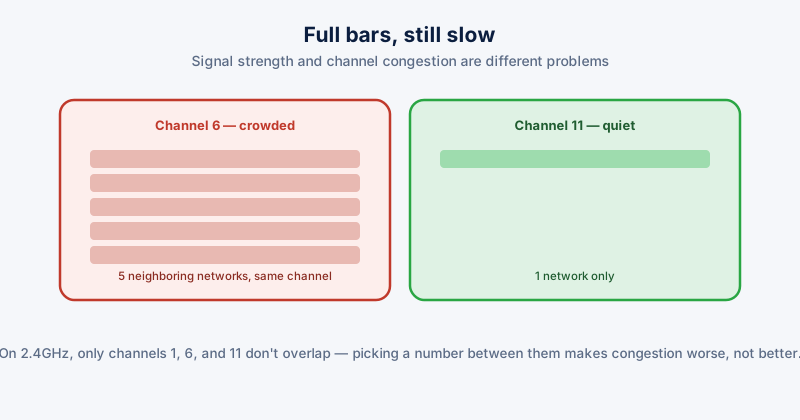
A WiFi connection showing full signal bars and still feeling slow is a specific, common, and fixable problem: channel congestion. Your router isn't the only device broadcasting nearby — every neighboring WiFi network, plus some cordless phones, baby monitors, and microwaves, share the same limited set of radio channels, and too many of them crowded onto the same one causes real, measurable slowdown that signal strength alone doesn't capture.
Why this is different from a weak signal
Signal strength measures how clearly your device can hear your router. Congestion measures how much of that same channel is being used by everyone else's traffic at the same time — a strong, clear signal on a crowded channel still means waiting for gaps between everyone else's transmissions, the WiFi equivalent of a clear phone line that's constantly busy.
2.4GHz vs. 5GHz
- 2.4GHz has longer range and better wall penetration, but only 3 non-overlapping channels in most regions, and virtually every neighbor's router, baby monitor, and Bluetooth device competes for those same 3 channels — this band is almost always more congested
- 5GHz has far more available channels and much less interference from non-WiFi devices, at the cost of shorter range and worse penetration through walls
If your router broadcasts both bands, connecting to 5GHz specifically for devices near the router (a desktop, a TV) and reserving 2.4GHz for devices that need the extra range often improves both immediately, just from splitting the load.
Checking how congested your channel actually is
A WiFi analyzer app (available for Windows and phones) shows every nearby network, which channel each one is using, and their relative signal strength — this turns "my WiFi feels slow" into an actual picture of how crowded your specific channel is compared to the alternatives.
Changing your channel
- Log into your router's admin page (commonly 192.168.1.1 or 192.168.0.1 in a browser — check the label on the router itself for the exact address and login)
- Find the wireless settings, usually under a section labeled Wireless or WiFi Settings
- On 2.4GHz, manually set the channel to 1, 6, or 11 specifically — these are the three that don't overlap with each other, and picking a number in between actually causes more interference, not less
- On 5GHz, Auto channel selection is usually fine, since there are enough channels available that manual tuning matters far less
When it's genuinely not congestion
If a WiFi analyzer shows your channel isn't actually crowded and the slowdown persists, the cause is more likely elsewhere — a router placement issue (physical obstructions, distance), an outdated router firmware, too many devices actively streaming or downloading on the same network at once, or a problem upstream at your ISP rather than your local WiFi at all.
ETA System Doctor's Wi-Fi Diagnostics shows your connection quality and nearby channel congestion together, with a suggested less-crowded channel, rather than requiring a separate WiFi analyzer app and a manual trip into your router's admin settings to figure out the right number to pick.