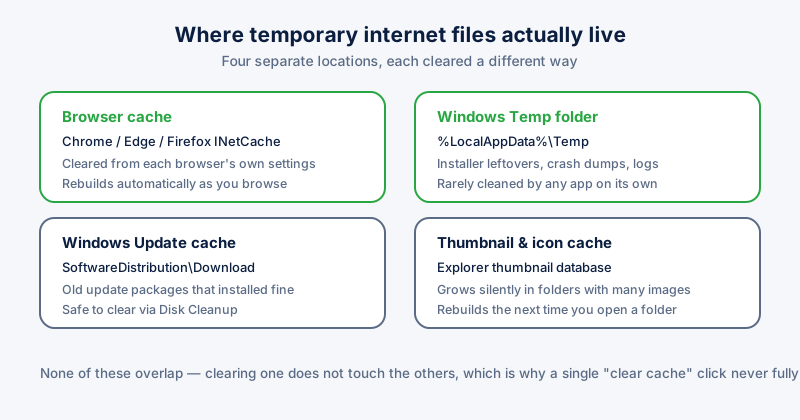
"Clean temporary internet files" sounds like one job. It is actually four: your browser's own cache, the Windows Temp folder, the Windows Update download cache, and the thumbnail database Explorer keeps for every folder of images. Clearing one does nothing to the other three, which is why a single "clear cache" click never seems to free as much space as expected.
What counts as a temporary internet file
Strictly, the term means the cached copies your browser keeps of pages you've visited — images, scripts, and stylesheets saved locally so the next visit loads faster. In practice people use the phrase more loosely to mean all of the disposable clutter a machine accumulates from being online: installer leftovers, update packages, crash reports, and thumbnail caches included.
Where they actually live
- Browser cache — inside each browser's own profile folder, cleared from that browser's settings, not from Windows
- Windows Temp folder — %LocalAppData%\Temp, filled by installers and apps that rarely clean up after themselves
- Windows Update cache — C:\Windows\SoftwareDistribution\Download, old update packages kept after they installed successfully
- Thumbnail cache — Explorer's database of folder preview images, which grows fastest in folders full of photos or downloaded images
Clearing them manually
- Open each browser's history/privacy settings and clear "Cached images and files" specifically — not cookies, unless you want to be signed out everywhere.
- Press Windows key + R, type %temp%, and press Enter. Select everything and delete — a handful of files in use will refuse to delete, which is normal; skip them.
- Open Disk Cleanup (search "Disk Cleanup" in the Start menu), tick "Temporary files" and "Windows Update Cleanup", and run it.
- For the thumbnail cache specifically, Disk Cleanup also has a "Thumbnails" option in the same list.
Don't delete files inside %temp% that are currently in use — Windows will simply skip them rather than error out, so it's safe to select everything and let the ones in use fail silently.
Why they come back so fast
None of this is a one-time fix. The browser cache rebuilds the moment you load a page again — that is its entire purpose. The Temp folder refills every time you run an installer. Update packages accumulate every patch cycle. None of the four locations has a built-in schedule to clean itself, which is why the space they occupy tends to creep up for months between manual cleanups.
ETA System Doctor's Temp & System Junk cleaner reaches all four locations in one pass — browser caches across Chrome, Edge and Firefox, the Windows Temp folder, the Update cache, and thumbnails — without touching logins, bookmarks, or files still in use, and it can run on a schedule so the buildup never gets a chance to start again.