You do not need CCleaner to clean a Windows 11 PC. Microsoft already ships tools that empty Temporary files, empty the Recycle Bin, and remove Windows.old after an upgrade. Used in the right order, they are enough for a first pass.
They are also incomplete. Built-in Disk Cleanup does not reach every browser, every leftover installer, or every safe-to-remove cache, and it will not tell you which large folders are actually off-limits. This guide is a checklist you can run yourself, a clear list of what those tools still miss, and a way to choose a free cleaner — if you want one — without installing junkware.
If you only want the official ETA System Doctor installer, go to the download page. The free plan is included. Pro is $4.99 a year if you later want the paid toolkit. No cloud account is required; cleanup runs locally.
What Windows 11 already cleans for you
Start here, even if you plan to use a third-party tool later. These steps are free, built in, and reversible in the sense that you are deleting caches and leftovers, not programs you still use.
Temporary files and Storage sense. Open Settings → System → Storage. Windows lists Temporary files: Recycle Bin, Delivery Optimization files, temporary internet files, Thumbnails, and similar categories. Review the list before you click Clean. Leave Downloads unchecked unless you are sure that folder has nothing you still need.
Storage sense can run some of this automatically. It is conservative, which is good, but it will not always clear a large Windows.old folder the day after a feature update.
Disk Cleanup (cleanmgr). Search for “Disk Cleanup,” choose your system drive, and start with the standard list. Then click “Clean up system files” to reach Windows Update leftovers and, when it is present, Windows.old. We published a longer walkthrough of what Disk Cleanup frees and what it misses.
Windows.old. After a major upgrade, Windows keeps a copy of the previous install for about 10 days so you can roll back. Once you are sure the new version is stable, removing it can free 20–30 GB. Do it through Disk Cleanup or Storage, not by dragging the folder to the Recycle Bin. See how to delete Windows.old safely.
Browser caches, one browser at a time. In Chrome or Edge you can clear cached images and files from the browser’s own settings. That fixes some page-load oddities and recovers a little disk. It is not a full browser cleanup, and it does not touch every profile or leftover extension folder. A step-by-step for Chrome is here: how to clear your Chrome cache.
If the PC is still slow after this pass, leftover files may not be the cause. The checklist below stays on cleanup.
A safe manual checklist (work down the list)
Treat this as a half-hour job, not a weekend project.
- Restore point. In the Start menu, search for “Create a restore point” and create one before you delete system-related leftovers. It is cheap insurance.
- Storage → Temporary files. Tick the obvious caches. Leave Downloads and anything you do not recognise unchecked.
- Disk Cleanup, including system files. Remove Windows Update cleanup and Windows.old only if you do not need to roll back.
- Downloads folder. Sort by size and date. Delete installers you already ran. Keep licence PDFs, invoices, and anything from the last few weeks you have not opened yet.
- Recycle Bin. Empty it only after you have glanced at the list.
- Browser cache, not saved passwords. Clear cached files. Do not reset the browser or wipe saved logins unless that was the goal.
- Large, obvious personal duplicates. Old copies of holiday photos or repeated project folders are often the biggest wins. Do not run a “registry booster” to find them.
- Restart once. Some pending update cleanups finish after a reboot.
If you want a file-by-file view of what is usually safe (Temp, crash dumps, Windows.old) and what is never safe (System32, your user profile’s real documents), use which Windows files you can safely delete.
What those built-in tools still miss
This is why people look for a CCleaner alternative in the first place.
- More than one browser, more than one profile. Disk Cleanup and Settings do not give you a single, careful pass over Chrome, Edge, Firefox, and their leftover caches together.
- Leftover software debris. Uninstallers often leave folders in ProgramData, leftover shortcuts, and helper services. Windows does not always offer a tidy report of those.
- Safe-to-remove caches that are easy to get wrong. Game shader caches, some launcher caches, and certain log folders are safe if you know which they are, and expensive if you delete the wrong one (a long re-download, for example).
- Privacy leftovers. Clipboard history, some tracking cookies, and per-site data are not the same as “Temporary files.” A privacy-minded cleanup is a separate pass.
- Guidance. Built-in tools present checkboxes with short names. They rarely tell you “this is a crash dump; it is safe” versus “this is a Windows component; leave it.”
None of that means you must install a cleaner. It means a good cleaner is a map plus a cautious delete list, not a big red “boost” button.
How to choose a free Windows 11 cleaner without junkware
If you decide you want a tool, judge it on behaviour, not on a score.
It should run locally. Cleanup that uploads your file lists or browsing data to a cloud account is a different product than a utility that works on the PC in front of you. ETA System Doctor is built to run locally, with no cloud upload of that scan.
“Free” should be a usable plan, not a trial that expires into a scare screen. ETA has a free plan you can keep using. Pro is optional: $4.99 for one year, $18.99 for five years, or $39.99 lifetime, with a Family Pack at $13.99 a year for three devices. Confirm live prices on the pricing page.
It should not depend on registry “repair” as its main trick. Deleting leftover registry keys rarely makes a modern Windows 11 PC feel faster, and aggressive cleaners have a history of breakage. We wrote whether registry cleaners are safe if you want the longer version. Prefer tools that focus on files, caches, browsers, and startup items you can see.
The installer should be official and signed. Download from the vendor’s site, not from a bundle, a “mirror,” or a sponsored button at the top of a search page. ETA’s official installer is on etacleaner.com/download.
It should tell you what it will delete. A list you can review is worth more than a single percentage “health” score.
When CCleaner is (and is not) the problem
CCleaner is still a widely used cleaner, and for some people it does a familiar job. The reason to look elsewhere is not a slogan. It is usually one of these:
- You want a free plan that stays useful without being pushed into a paid bundle you did not come for.
- You want a clearer privacy story — local processing, and tools that go beyond emptying a cache.
- You would rather not give a cleaner a “fix the registry” mandate.
- You are simply tired of a tool you have used for years and want a smaller alternative.
If you are comparing features and prices directly, use the factual page ETA System Doctor vs CCleaner, and the shorter free CCleaner alternative overview. This article is the how-to; those pages are the product comparison. They are different on purpose, so search engines and readers can tell them apart.
You can also stay on CCleaner, or use only the Windows tools above.
A local-only option: ETA System Doctor
ETA System Doctor is a Windows cleanup, privacy, and speed toolkit. It is aimed at the gaps in the checklist: browsers, leftover junk, and a reviewable scan, without sending that scan to a cloud account.
- Download the official installer from etacleaner.com/download.
- Start on the free plan. There is no requirement to enter a card.
- If you want Pro, current US pricing is $4.99 a year, $18.99 for five years, or $39.99 lifetime. A 3-device Family Pack is $13.99 a year. Check the pricing page before you pay, in case those figures have changed.
It will not replace a backup, and it will not fix a dying hard drive. Used after the built-in Windows steps, it is a faster way to do the same cautious cleanup.
Download ETA System Doctor free
Frequently asked questions
Can I clean Windows 11 without installing any cleaner?
Yes. Use Settings → System → Storage, Disk Cleanup (with “Clean up system files” when you need Windows.old or update leftovers), a careful pass through Downloads, and each browser’s own cache settings. That is a complete first pass for many PCs.
Is CCleaner safe to use on Windows 11 in 2026?
Plenty of people still use it. Safety depends on what you allow it to delete and where you download it from. Avoid bundled or unofficial installers, and be cautious with registry cleaning. If you want a local-only alternative with a free plan, see ETA vs CCleaner.
Will Disk Cleanup alone speed up my PC?
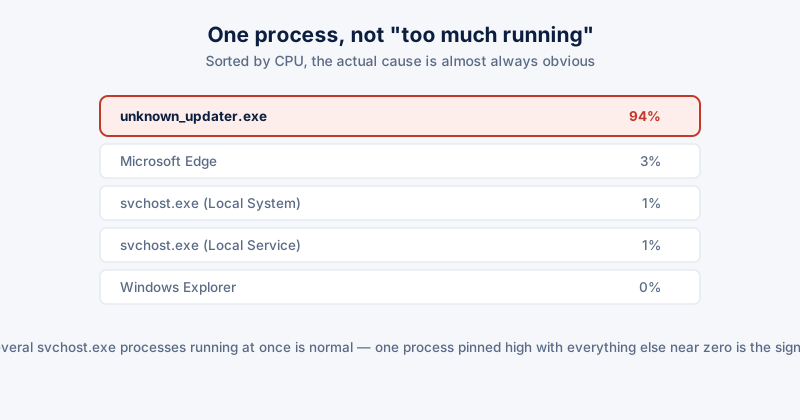
It can free a lot of disk, which helps if the drive was nearly full. If the PC is slow because of startup apps, a crowded browser, or hardware, cleanup alone will not fix it. Free the disk first, then look at those other causes if the machine is still slow.
Is it safe to delete the Windows Temp folder and Prefetch?
The Temp folder is usually safe to clear while apps are closed; Windows will recreate what it needs. Prefetch is not a good manual target for most people — the savings are small and Windows uses it to start programs. Details are in which files you can safely delete.
How much does ETA System Doctor cost if I want more than the free plan?
The free plan is included with the official download. Pro is $4.99 a year, $18.99 for five years, or $39.99 lifetime. A Family Pack for three devices is $13.99 a year. Confirm on the pricing page.