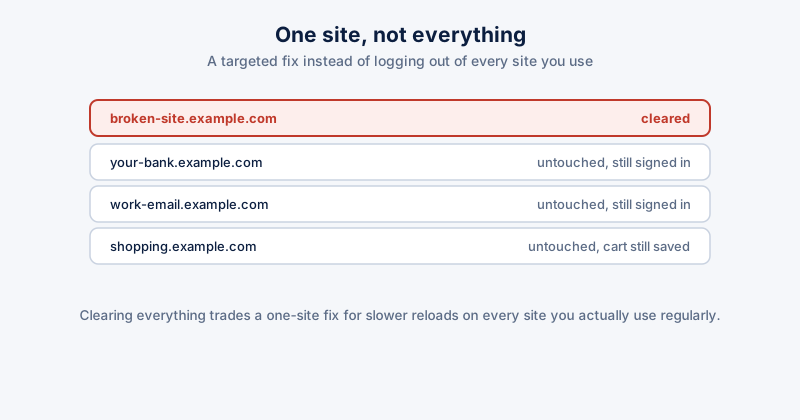
A single misbehaving website — showing outdated content, stuck in a broken state, or throwing errors that a normal reload doesn't fix — usually doesn't need a full browser cache clear to resolve. Clearing everything trades a targeted fix for a broad one: every other site you visit regularly gets slower again while its own cache rebuilds, for a problem that only ever affected one of them.
Clearing one site's data in Chrome or Edge
- Click the icon to the left of the address bar (a lock or an "i" in a circle, depending on the site) while on the page in question
- Click Site settings (or Cookies and site data in some versions)
- Find the option to Clear data for that specific site, or use the Delete button next to its entry
- Reload the page
For more control, or to clear a site you're not currently on, go to chrome://settings/content/all (or edge://settings/content/all in Edge), search for the site by name, and clear its stored data from there directly.
Doing the same in Firefox
- Click the padlock icon in the address bar while on the site
- Click Clear cookies and site data for that domain specifically
- Alternatively, go to Settings → Privacy & Security → Cookies and Site Data → Manage Data, search for the site, and remove it from that list
This clears both cache and cookies for that one site together in most browsers' quick version — if you specifically want to keep being signed in while still clearing the cache, use the fuller "Manage Data" / site-settings view instead, which usually lets you target cache separately from login cookies for that domain.
When this is the right fix
- A site showing an old version of a page after it's been updated, when a normal reload (or Ctrl+F5 hard reload) hasn't fixed it
- A site stuck in a broken login or checkout state specifically on that domain
- A web app that fails to load or behaves oddly after an update, isolated to that one site
When it's not enough
If clearing a single site's data doesn't resolve the problem, the cause likely isn't cache-related at all — worth checking whether the site is down for other users too, whether a browser extension is interfering (try the site in a private/incognito window, which runs with most extensions disabled by default), or whether it's a genuine bug on the site's own end rather than anything cached locally.
ETA System Doctor's per-site controls in Browser Cleanup extend this same targeted approach to routine cleanup too — choosing exactly which sites get cleared on a schedule and which stay untouched, rather than the all-or-nothing choice a manual per-site clear like this one only solves for a single site at a time.