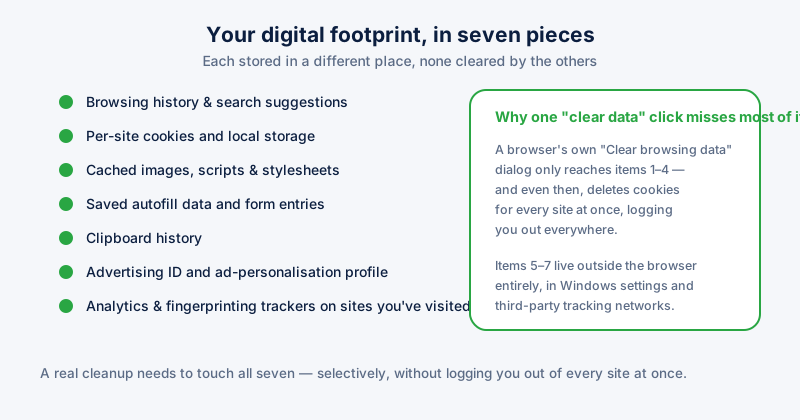
"Digital footprint" gets used loosely, but on a Windows PC it breaks down into seven concrete, separately-stored things. A proper digital footprint cleanup means working through all seven — most people only ever touch the first two or three, because those are the ones a browser puts a button in front of.
The seven pieces
- Browsing history and search suggestions
- Per-site cookies and local storage
- Cached images, scripts, and stylesheets
- Saved autofill data and form entries
- Clipboard history
- Advertising ID and Windows' ad-personalisation profile
- Analytics and fingerprinting trackers embedded in sites you've visited
Why one button doesn't reach all of it
A browser's "Clear browsing data" dialog covers roughly the first four, and even then bundles them awkwardly — clearing cookies for privacy usually means clearing cookies for every site at once, logging you out everywhere rather than the one or two sites you actually distrust. Items five through seven sit outside the browser entirely, in Windows settings and in scripts run by the sites themselves, and no single dialog anywhere reaches all seven at once.
A step-by-step cleanup checklist
- Clear cookies per-site rather than in bulk, keeping the logins you want and removing the rest.
- Clear the browser cache separately from cookies — it never needs the "sign out everywhere" trade-off.
- Turn off the Windows advertising ID under Settings → Privacy & security → General.
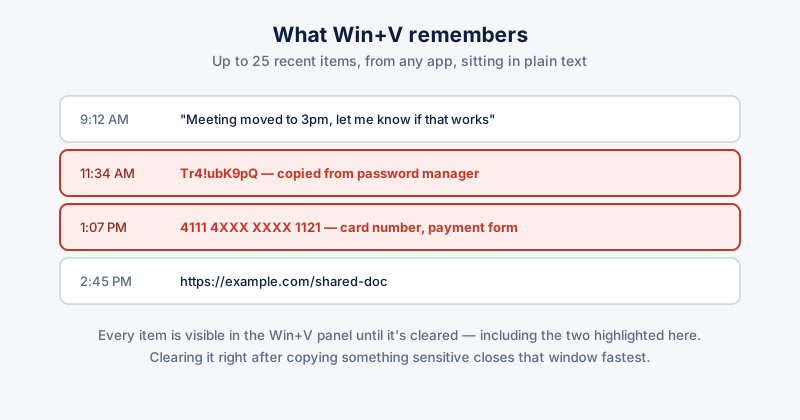
- Clear clipboard history: Windows key + V, then the "Clear all" option in that panel.
- Add tracker blocking for analytics and fingerprinting scripts that live outside any of the above.
- Review saved autofill entries in your browser's settings and remove anything you no longer want stored.
Doing this once helps for a day. Browsing history, cache, and trackers all rebuild the moment you go back online — a real cleanup routine needs to repeat, not just run once.
Keeping it clean going forward
The seven items above don't need equal attention — cookies and cache rebuild constantly and are worth a regular pass, while the advertising ID and clipboard settings are closer to a set-once-and-forget change. Treating them as one undifferentiated "clean everything" task is why footprint cleanup tends to get skipped: most of it isn't actually that repetitive once split apart.
ETA System Doctor covers all seven from one place: the Per-Site Cookie Manager for selective cookie removal, the Browser Cache Cleaner for the rest of the cache, Browser Guard's Tracker Blocking for the analytics and fingerprinting scripts no browser setting reaches, and the Stop Windows Spying pass for the advertising ID and other Windows-side settings — run individually or together, on a schedule.