"My printer won't print" is one of the most common tech complaints there is, and in a large share of cases the printer itself is completely fine — the problem is the Print Spooler, the Windows background service that manages the queue of documents waiting to print. A stuck job in that queue can block everything behind it, sometimes silently, with no error message telling you why nothing is happening.
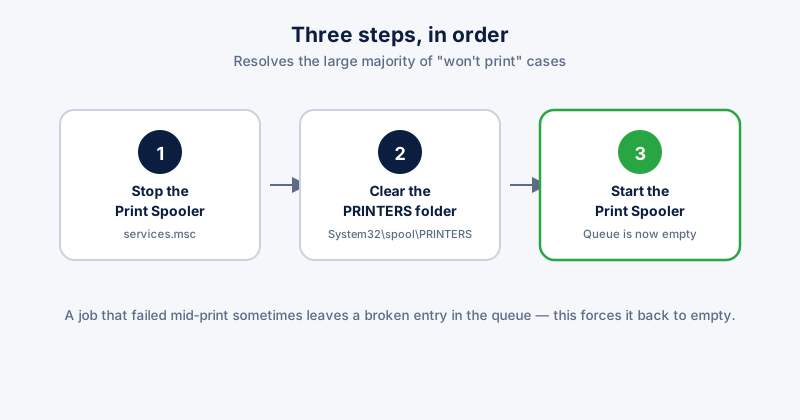
The fix, in order
- Press Win + R, type services.msc, and press Enter
- Find Print Spooler in the list, right-click it, and choose Stop
- Open File Explorer and navigate to C:\Windows\System32\spool\PRINTERS
- Delete everything inside that folder — these are the stuck job files, and removing them is safe; nothing else depends on them
- Go back to services.msc, right-click Print Spooler again, and choose Start
- Try printing again
You may need administrator permission to delete files in the PRINTERS folder — if File Explorer blocks the deletion, confirm the admin prompt rather than working around it, since this folder is protected specifically because it's a system service's working directory.
Why this works
A print job that fails partway through — a printer running out of paper mid-job, losing connection, or receiving a corrupted file — sometimes leaves a broken job sitting in the spooler's queue rather than clearing itself. Everything printed after that gets stuck waiting behind it. Stopping the service, clearing the queue's files directly, and restarting it is the standard way to force that queue back to empty.
If restarting the spooler doesn't fix it
- Check the physical connection or WiFi status first — a spooler restart won't help if the printer itself has actually lost connection, run out of paper, or thrown a hardware error
- Try removing and re-adding the printer in Settings → Bluetooth & devices → Printers & scanners, which resolves driver-level issues a spooler restart doesn't touch
- Update or reinstall the printer driver from the manufacturer's site — an outdated or corrupted driver is the next most common cause after a stuck queue
- Check for a second, unrelated print job stuck on a different printer if you have more than one installed — Windows sometimes queues to the wrong default device
ETA System Doctor's Printer/Spooler Fix runs the stop-clear-restart sequence above in one click, so it's not something you need to remember the exact folder path and service name for the next time it happens.