Running out of memory feels distinctive: everything is fine until it suddenly is not, switching between windows starts to lag, and the disk light stays on. This guide covers how to confirm that memory really is your bottleneck rather than high CPU usage, how to free up RAM on Windows in ways that actually help, and one widespread piece of advice that is worse than doing nothing.
First, check whether RAM is really the problem
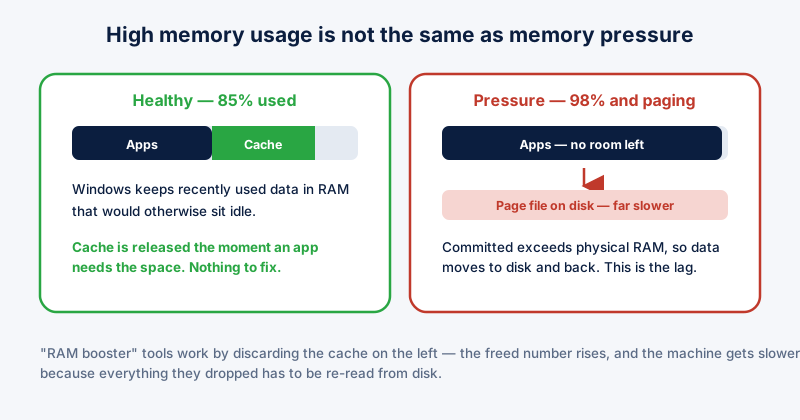
Open Task Manager with Ctrl + Shift + Esc and go to Performance, then Memory. Two numbers matter: the percentage in use, and "Committed". If usage sits near 100% during normal work, or Committed regularly exceeds your physical RAM, the system is paging to disk and memory is your bottleneck.
High memory usage on its own is not a fault. Windows deliberately keeps recently used data cached in otherwise idle RAM because empty memory helps nobody. The problem is memory pressure — usage staying high while you are actively working — not a high number by itself.
What actually frees memory
- Close browser tabs. On most machines the browser is the single largest consumer, and each tab holds its own memory. Sleeping inactive tabs frees it without losing your place.
- Check the Processes tab for one outlier. Sort by Memory and look for a single process holding far more than it should — a leak in a long-running app is common and a restart of that app fixes it.
- Restart applications you have left open for days. Memory use tends to creep upward over long sessions, particularly in browsers and editors.
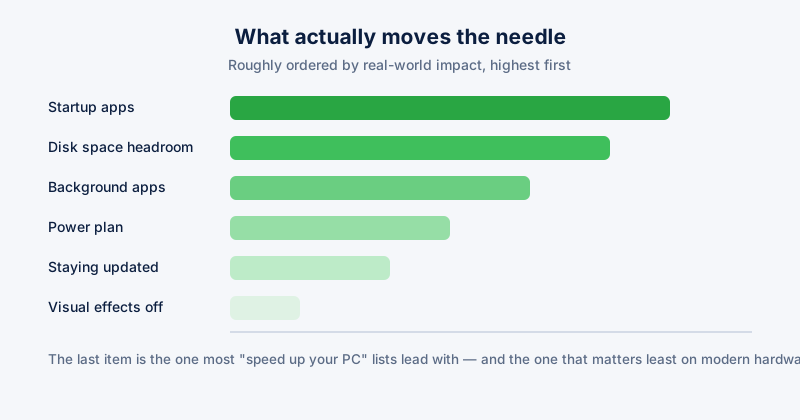
- Disable startup programs you do not need. Anything launching at login holds memory all day whether you use it or not.
- Restart the machine. Unglamorous, but it clears leaked memory and stuck processes in one step.
Why "RAM booster" tools usually backfire
Tools that continuously force memory to be freed work by making Windows discard its cache. The freed-memory number goes up, which looks like success. But that cache was holding data your applications were about to reuse, so the system now has to fetch it from disk again — and disk is far slower than RAM.
A one-off cleanup after closing a heavy application is reasonable. A tool that runs every few minutes in the background is actively working against the operating system.
Adjusting the page file
The page file is disk space Windows uses when RAM runs short. Leaving it system-managed is right for nearly everyone. Disabling it to "force" the use of RAM causes application crashes when memory runs out, with no warning. Enlarging it does not add speed; it only prevents out-of-memory errors more slowly than real RAM would.
When more RAM is the honest answer
If memory sits high with only your normal applications open, no single process is misbehaving, and you have already trimmed startup items, software has done what it can. As a rough guide: 8 GB is workable for light use, 16 GB is comfortable for most people, and heavy multitasking, virtual machines, or large creative files want 32 GB.
ETA System Doctor's Instant RAM Boost performs the one-off cleanup described above rather than running constantly, and its PC Health Score will tell you whether memory is genuinely your bottleneck before you spend anything.