Windows Recall works by taking a screenshot of your screen every few seconds and turning it into searchable text, so you can later type a phrase and find the exact moment you saw it — on any app, any website, any document. It's a genuinely useful idea sitting on top of a genuinely serious privacy problem, and knowing how to disable Windows Recall is worth two minutes even if you never planned to use it.
What Recall actually stores
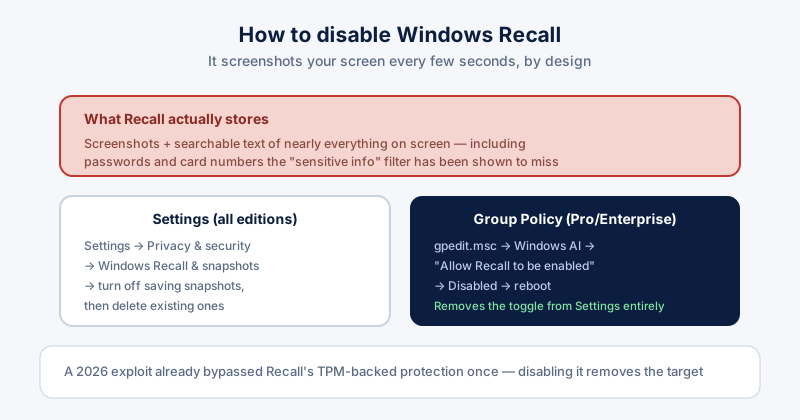
Every snapshot is OCR-processed into searchable text and saved locally. Microsoft added a "filter sensitive information" setting meant to skip passwords, card numbers, and similar data — but independent researchers have found it still misses real passwords shown during login, credit card numbers on banking pages, and Social Security numbers in open documents. The filter is best-effort, not a guarantee.
This has already been exploited once
In 2024, an early version of Recall stored snapshots in an unencrypted database that malware could read directly. Microsoft rebuilt the security architecture around TPM-backed encryption — and in 2026, a vulnerability researchers called "TotalRecall Reloaded" bypassed that protection anyway. Microsoft's response confirmed the behavior was "within the documented security design," which is a polite way of saying any program already running as you can still read your Recall history.
How to disable it: Settings (works on every edition)
- Open Settings → Privacy & security → Windows Recall & snapshots.
- Turn off "Save snapshots."
- Use the "Delete snapshots" option in the same screen to clear anything already saved — turning it off alone doesn't erase history that already exists.
How to disable it: Group Policy (Windows 11 Pro/Enterprise)
For a system-wide block that removes the toggle from Settings entirely: press Windows key + R, type "gpedit.msc," and go to Computer Configuration → Administrative Templates → Windows Components → Windows AI. Open "Allow Recall to be enabled," set it to Disabled, apply, and reboot.
Turning Recall off doesn't touch anything else about how Windows runs — no features are lost, nothing else changes.
Should you actually disable it?
If you ever work with anything sensitive on that PC — banking, client data, passwords typed by hand, private messages — the honest answer is yes. The convenience of searching your screen history rarely outweighs the risk of that same history being one exploit away from readable by something else running on your machine.
A privacy hardener that checks settings like this for you catches it automatically instead of relying on remembering to look — which matters more the more of these AI-driven background features Windows keeps shipping.