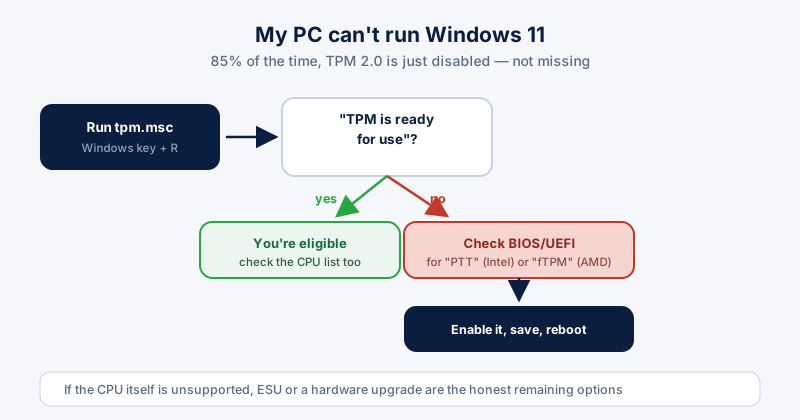
"This PC can't run Windows 11" is one of the most common upgrade blockers out there — an estimated 30-40% of PCs from 2017-2018 fail the check despite being perfectly capable machines otherwise. The good news: in the large majority of cases, the fix is a BIOS setting, not new hardware.
Check what's actually failing first
Download Microsoft's PC Health Check app — it tells you exactly which requirement is failing instead of leaving you to guess. Usually it's one of three things: TPM 2.0, Secure Boot, or an unsupported CPU generation.
TPM 2.0: usually disabled, not missing
Most PCs built in the last several years have TPM 2.0-level protection built into the CPU itself — it just needs switching on. Intel calls this PTT (Platform Trust Technology); AMD calls it fTPM. Here's how to check and fix it:
- Press Windows key + R, type "tpm.msc", and press Enter.
- If you see "The TPM is ready for use," you already have it — the block is something else.
- If not, restart and enter your BIOS/UEFI setup (usually Delete, F2, or F10 during boot).
- Look under Security or Advanced settings for "PTT," "Intel Platform Trust Technology," or "fTPM," and enable it.
- Save changes and reboot — Windows should now detect TPM 2.0.
Secure Boot needs enabling too
While you're in the BIOS, check that Secure Boot is enabled and that the boot mode is set to UEFI rather than Legacy/CSM — Windows 11 requires both, and older PCs sometimes ship with Legacy mode as the default.
If your CPU itself is the blocker
If PC Health Check flags the processor generation itself as unsupported, enabling TPM won't help — that's a hard requirement Microsoft has confirmed it won't lower. At that point the honest options are: stay on Windows 10 with ESU while you plan a hardware refresh, use one of the published bypass methods (which works, but forfeits some future updates and official support), or upgrade the hardware.
Should you bypass the requirement?
Bypassing gets Windows 11 installed on unsupported hardware and it generally runs fine day to day. The trade-off is real, though: Microsoft has stated it may withhold some updates from bypassed installs, and you're on your own if something breaks. For a primary work machine, staying supported — even if that means Windows 10 plus ESU for another year — is the safer call.