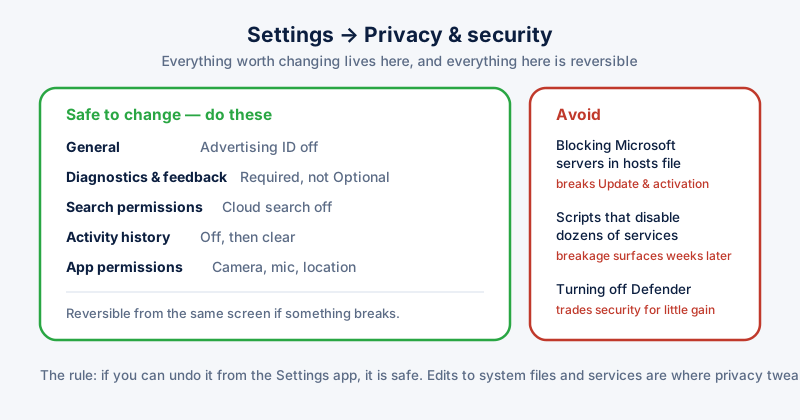
Windows collects diagnostic data, builds an advertising profile, and syncs a fair amount by default. To stop Windows spying you do not need third-party tools or registry surgery — most of it turns off from the Windows privacy settings in a few minutes. This guide covers the ones that make a real difference, in order of impact, and flags the aggressive tweaks that tend to break things.
Turn off the advertising ID
Windows assigns your account an advertising identifier that apps use to profile you across sessions. Open Settings, then Privacy & security, then General, and turn off "Let apps show me personalised ads by using my advertising ID". While there, turn off the other options on that page too — none affect how the system works.
Reduce diagnostic data
Settings, then Privacy & security, then Diagnostics & feedback. Set diagnostic data to Required rather than Optional. Turn off "Improve inking and typing", which otherwise sends samples of what you type. Turn off tailored experiences. Set feedback frequency to Never.
Required diagnostic data cannot be disabled through Settings on consumer editions. It covers device configuration and reliability rather than content.
Review app permissions
Under Privacy & security you will find a list: Location, Camera, Microphone, Account info, Contacts, and more. Go through the ones that matter to you and look at which apps hold access. The useful question is not whether an app can technically justify the permission, but whether you have ever wanted it to use it.
Camera and microphone are worth checking specifically, because permission is granted once and then persists silently. Windows shows an indicator while they are in use, but only while you are looking at the screen.
Search and Cortana
Windows search sends queries typed into the Start menu to Bing by default, meaning searching for a local file transmits that text. Settings, then Privacy & security, then Search permissions, and turn off cloud content search and search history.
Activity history and timeline
Settings, then Privacy & security, then Activity history. Turn off storing activity history on the device, and clear what is already recorded with the button provided.
What not to do
- Do not block Microsoft's servers in the hosts file. It breaks Windows Update, activation, and the Store, and update failures leave you less secure than the telemetry ever did.
- Be cautious with scripts that disable dozens of services at once. They frequently break Windows Update or networking, and the damage surfaces weeks later when the cause is hard to trace.
- Do not disable Windows Defender for privacy. You are trading a real security control for a marginal privacy gain.
The pattern worth following: settings you can reverse from the Settings app are safe to change. Edits to system files and service configurations are where privacy tweaking starts costing you a working machine.
ETA System Doctor's Stop Windows Spying applies the reversible settings above in one pass, and its "Am I Being Watched?" check shows camera and microphone access alongside recent usage.