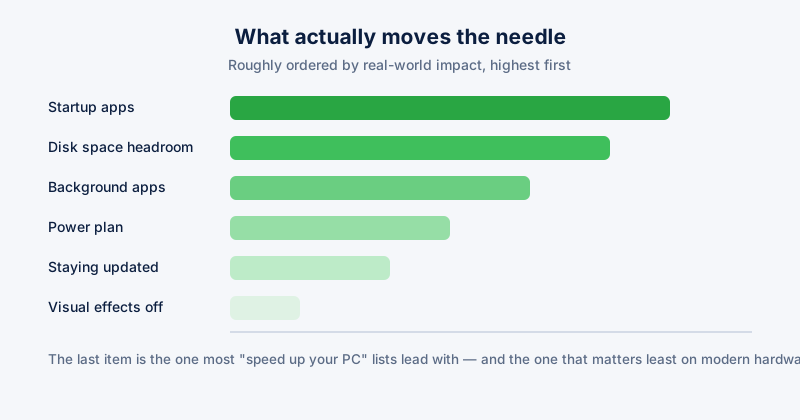
Why is my computer running slow? It is the most common question in PC support and the least useful one to answer directly, because it describes a symptom rather than a cause — and the fixes people reach for first are usually aimed at the wrong one. This guide works through the seven causes that account for most cases, roughly in the order worth checking: cheapest and most likely first.
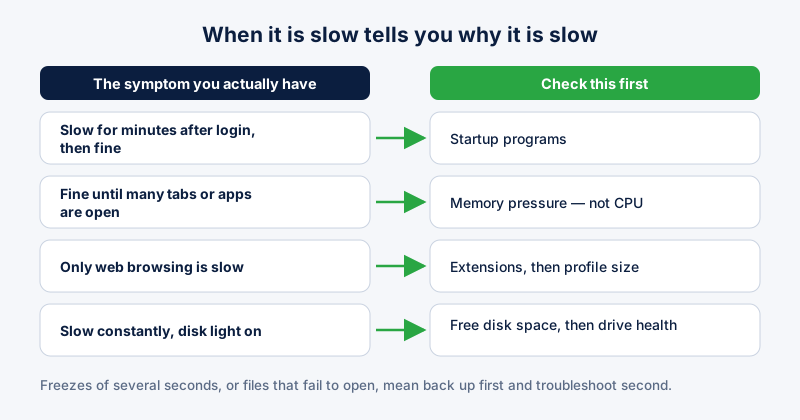
Before changing anything, note when the slowness happens: at startup, when opening a browser, when a specific app runs, or constantly. That single observation narrows the list below by more than any tool will.
1. Too many startup programs
If the machine is slow for the first few minutes after logging in and then settles down, a slow startup is your problem rather than general slowness. Every installed application that adds itself to startup competes for disk and CPU during boot.
Open Task Manager with Ctrl + Shift + Esc, go to the Startup apps tab, and sort by Startup impact. Disable anything marked High that you do not need immediately at login — updaters, launchers, and cloud sync clients are the usual suspects. Disabling a startup entry does not uninstall the program; it just stops it launching automatically.
2. Not enough free disk space
Windows needs free space to work with. Below roughly 10% free, paging and update operations slow noticeably, and below a couple of gigabytes things can get genuinely bad. Check This PC and look at your system drive.
The largest wins are usually a previous Windows installation, the hibernation file, and accumulated temporary files. Our guide on deleting Windows.old covers those in detail.
3. Memory pressure from open tabs and apps
If everything is fine until you have twenty browser tabs open, you are running out of RAM rather than CPU. In Task Manager's Performance tab, watch the Memory graph while working normally. Consistently above 80% means the system is swapping to disk, which is dramatically slower than RAM.
Closing tabs helps immediately. Sleeping inactive tabs helps without losing them. Adding RAM helps permanently.
4. High CPU usage from a single process
Open Task Manager, click the CPU column to sort, and watch for a minute. High CPU usage while the machine is idle is worth investigating — antivirus scans, Windows Update, and search indexing all do this legitimately and finish on their own. Something that never finishes is a different matter.
Search the process name before killing anything. Many alarming-looking names are ordinary Windows components.
5. A cluttered browser rather than a slow PC
If only web browsing is slow and everything else is fine, the PC is not the problem. Extensions are the most common cause, followed by a very large profile. Disable extensions in bulk, confirm the speed returns, then re-enable them one at a time to find the culprit.
6. Failing or nearly-full storage
A drive developing faults slows down long before it fails outright, often with occasional freezes rather than steady slowness. Windows exposes a basic health status, and a full SMART reading is more informative.
If you see freezes lasting several seconds, unexplained crashes, or files that occasionally fail to open, back up your data before troubleshooting anything else. Drive symptoms are the one item on this list where delay costs you data.
7. Malware or unwanted software
Adware and bundled software consume resources and are rarely announced. If slowness arrived alongside new browser toolbars, a changed search engine, or pop-ups, treat it as the likely cause and read our guide on cleaning up a hijacked browser.
What not to bother with
- Defragmenting an SSD — it does nothing useful and adds unnecessary writes. Windows already runs TRIM appropriately.
- Registry cleaning as a speed fix — it can tidy leftovers from uninstalled software, but it is not why your PC is slow.
- "RAM booster" tools that run constantly — freeing memory Windows was deliberately using as cache usually makes things slower, not faster.
ETA System Doctor's PC Health Score runs six of these checks at once and tells you which of them applies to your machine, which is faster than working through the list by hand.